
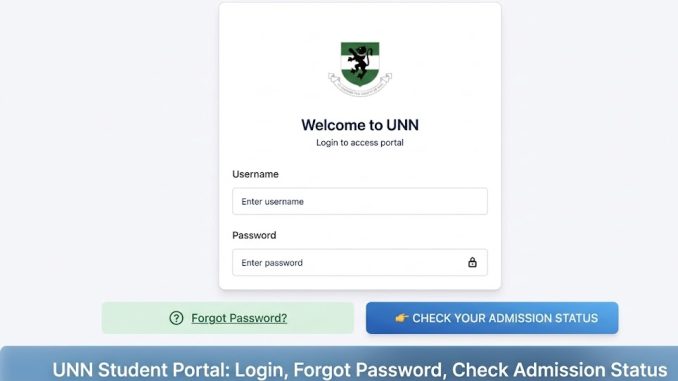
The UNN Student Portal is an online platform for students of the University of Nigeria, Nsukka (UNN). Through the portal, students can access class schedules, examination results, course registration, payment records, admission status, and other academic information. Whether you’re a fresh applicant or a returning student, knowing how to use the portal is essential.
You can check on (2026) Federal College of Education (FCE), Oyo Recruitment: Application Form, Requirements, How to Apply before proceeding.
How to Login to the UNN Student Portal
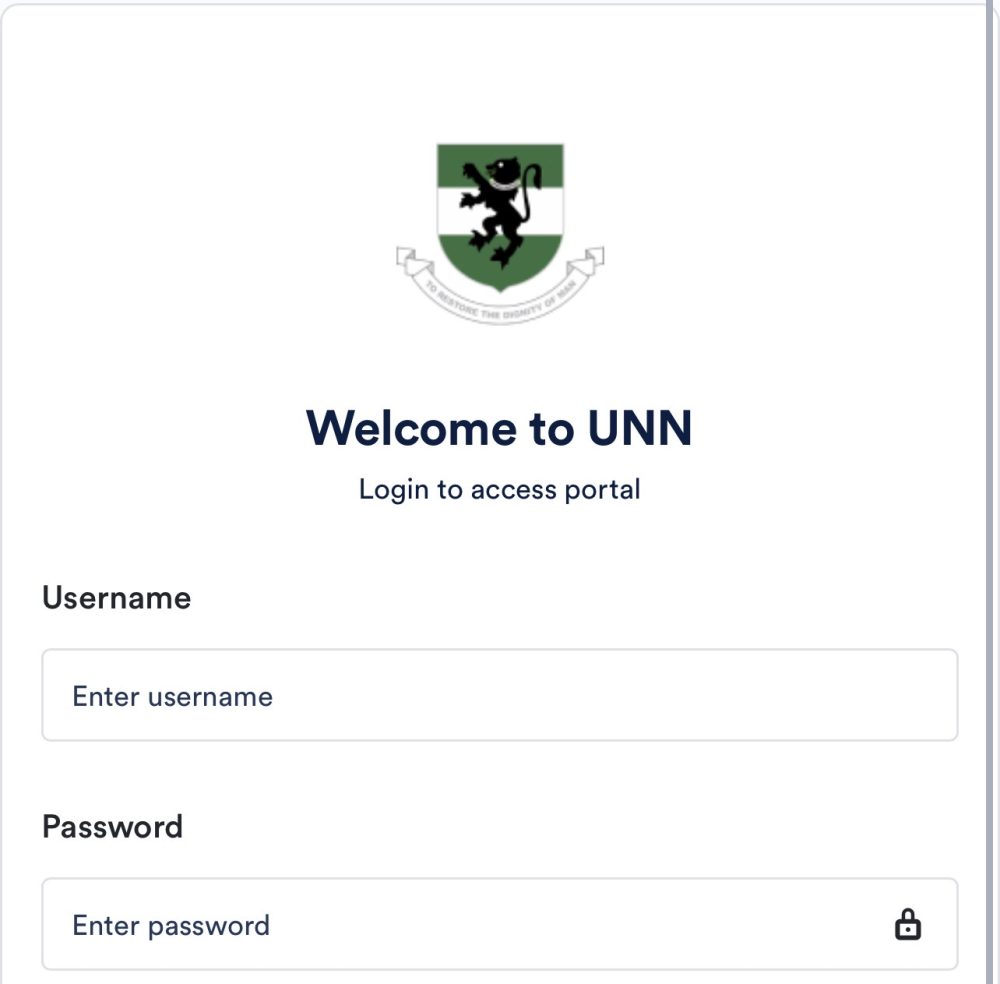
To access your student dashboard on the UNN portal, follow these steps:
Step 1: Open the Official Portal
Visit the official UNN student portal website. Use a modern browser (Chrome, Firefox, Safari) for best results.
Step 2: Find the Login Section
The portal usually shows a login box for students. It may be labeled Student Login, Student Portal, or Login Here.
Step 3: Enter Your Credentials
You will need:
- Matriculation Number or Username
- Password
Your username is often your Matric Number or the email you used during registration.
Step 4: Submit and Access Your Dashboard
After entering your login details, click Login or Submit. If your credentials are correct, you should see your student dashboard, which may include:
- Course registration
- Exam results
- Profile information
- Financial statements
- Admission status
Note: Always make sure you’re using the official UNN portal to avoid phishing sites.
What to Do If You Forget Your Password
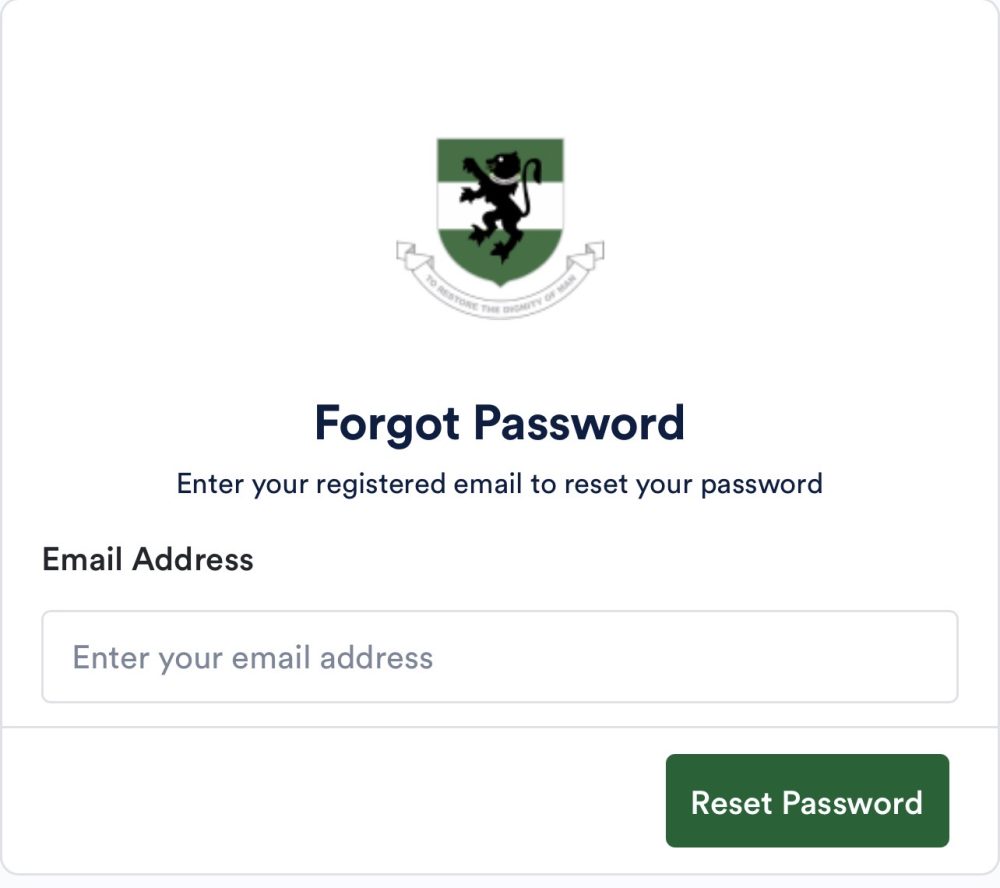
Forgetting your password is common, and the portal has a way to recover it.
Here’s how:
Step 1: Go to the Login Page
Open the UNN student portal login page.
Step 2: Click “Forgot Password”
There should be a link labeled Forgot Password or Reset Password near the login form.
Step 3: Provide Your Details
Once you click the link:
- Enter your Matriculation Number
- Enter your registered email address or phone number (depending on what the portal asks)
Step 4: Check Your Email
The portal will send a password reset link or a verification code to your registered email or phone.
Step 5: Reset Your Password
Follow the instructions in the message to set a new password. Choose a password you can remember but is also secure (mix letters, numbers, and symbols).
Step 6: Login with the New Password
Return to the login page and sign in with your matric number and new password.
Tips:
- Check your spam or junk mailbox if you don’t see the email.
- If you still don’t receive a reset message, contact the school’s ICT support team.
How to Check Your Admission Status on the UNN Portal
If you applied for UNN admission and want to check whether your application was successful, the portal can display your admission status.
Here’s how:
Step 1: Visit the UNN Admission Portal
The admission status may be checked via the UNN postgraduate or undergraduate admission portal (usually separate from the student dashboard login). Make sure you use the official school website.
Step 2: Find “Check Admission Status”
Look for a link that says Check Admission Status, Admission List, or Applicant Portal.
Step 3: Enter Your Application Details
You may need:
- JAMB Registration Number (for UTME applicants)
- Application number
- Email address
- Surname or date of birth
Step 4: Submit to View Status
After entering the required details, click Check Status.
You should see information such as:
- Admission offer (Yes/No)
- Program offered
- Admission year
- Next steps (e.g., acceptance, clearance)
Step 5: Print or Save Your Admission Letter
If you have been admitted, follow the portal instructions to print your admission letter or download it as a PDF for school registration.
Important:
Admission status updates are official only if seen on the UNN admission portal or confirmed by the university’s admissions office. Beware of social media scams that claim to show admission results.
Common Problems and How to Fix Them
Problem: “I Can’t Login”
- Solution: Double-check your matric number or username.
- Ensure caps lock is off.
- Try resetting your password (see above).
- Clear your browser cache or try another device.
Problem: “I’m Not Receiving Password Reset Email”
- Solution:
- Check spam/junk folders.
- Make sure the email you provided is correct and active.
- Wait a few minutes — email delivery can sometimes be delayed.
- If nothing arrives, contact the portal support team.
Problem: “Admission Status Not Showing”
- Solution:
- Confirm you are using the correct portal.
- Ensure your application details (JAMB or portal application number) are correct.
- Admission lists may be released in batches — check again after a few days.
Tips for Using the UNN Portal Safely
- Always bookmark the official school portal.
- Avoid logging in on public Wi‑Fi.
- Regularly update your password.
- Do not share your login credentials with others.
- Log out when finished — especially on shared devices.
What You Can Do on the UNN Student Portal
Once logged in, students can usually:
- Register for courses
- Check exam timetables
- View results and transcripts
- Check fee balances and payment history
- Update contact details
- Access admission status
- Download letters or documents
How to Contact Support if You Have Issues
If you encounter problems that aren’t solved by password reset or portal tips:
- Look for the support or help desk link on the portal
- Use the published ICT support email or phone number
- Visit the UNN ICT Department in person if possible
Support teams can help with:
- Locked accounts
- Forgotten username
- Login errors
- Portal system issues


Be the first to comment