
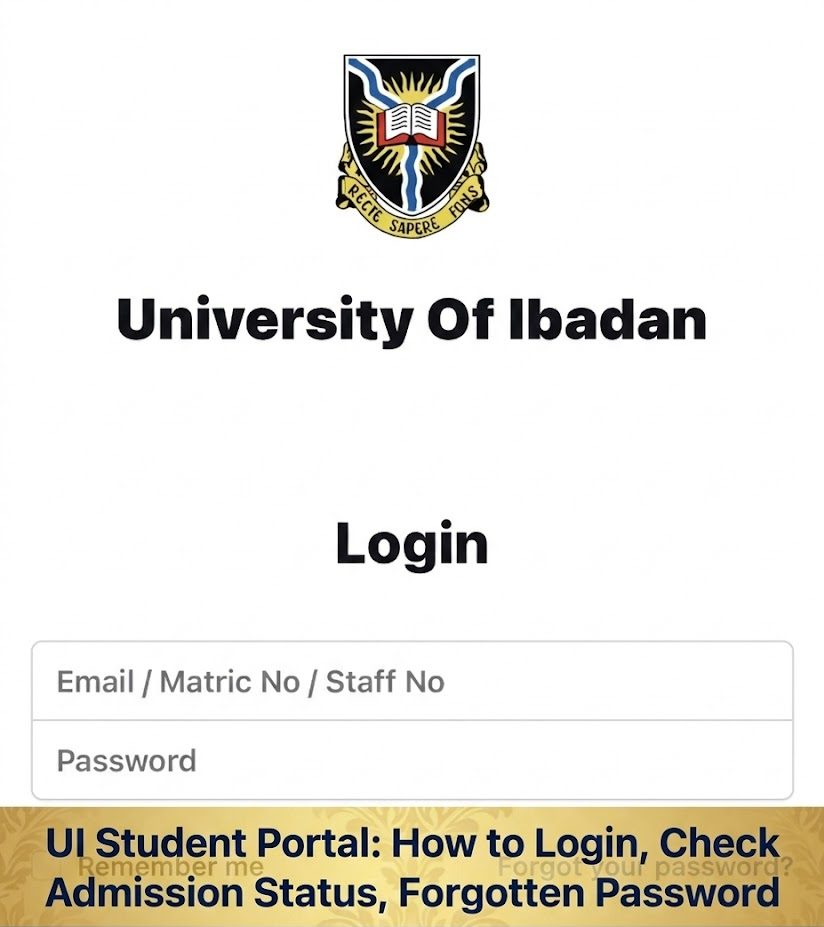
The University of Ibadan (UI) is one of Nigeria’s leading academic institutions, and the UI Student Portal is a vital tool for students at the university. It offers a central location for students to access various academic services, including course registration, result checking, and admission status updates. This guide will walk you through how to login to the UI student portal, how to check your admission status, and what to do if you forget your password.
How to Login to the UI Student Portal
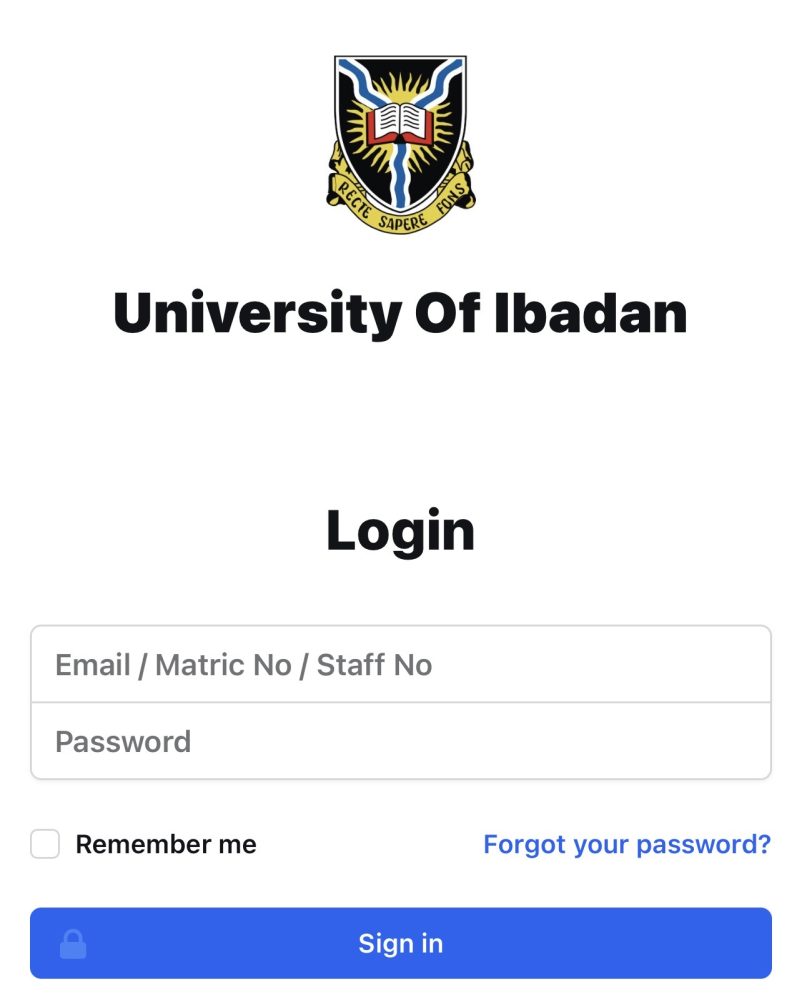
Logging into the UI student portal is the first step to accessing your academic profile and other services offered by the university. To begin, follow these steps:
Step 1: Visit the Official UI Portal
The first step to logging into the UI portal is to navigate to the official student portal. Make sure you are using the correct link to avoid phishing or fraudulent websites. Use this link to access the portal:
UI Student Portal Login.
Step 2: Enter Your Login Credentials
Once you have accessed the UI student portal login page, you will need to enter your credentials:
- Matriculation Number or Username: This is usually your unique student identification number or the username you registered with when creating your profile.
- Password: Enter the password you created during registration.
Step 3: Submit Your Details
After entering your Matriculation Number/Username and Password, click on the Login button. If your credentials are correct, you will be redirected to your student dashboard.
Your student dashboard provides access to various services, such as course registration, exam results, admission status, and financial records.
Step 4: Access Your Dashboard
Once logged in successfully, you’ll have access to your student dashboard. The dashboard contains several sections, including:
- Course registration
- Results and transcripts
- Fee balance and payments
- Personal details
You can navigate through these sections depending on what you need to do on the portal.
How to Check Your Admission Status on the UI Portal
If you are a prospective student, checking your admission status is one of the most crucial tasks on the UI portal. Here’s how to check if you’ve been offered admission into the university:
Step 1: Go to the Admission Status Section
To check your admission status, you need to visit the UI admission portal. Use this link:
UI Admission Status Portal.
Step 2: Provide Your Application Details
On the Admission Status page, you will be asked to input certain details to retrieve your admission status. Generally, you will need:
- JAMB Registration Number (for UTME applicants) or your Application Number (for Direct Entry applicants).
- Surname or Date of Birth (as per your application).
Enter the required details into the provided fields on the portal.
Step 3: Submit Your Details
After filling in your JAMB registration number and other required information, click Check Admission Status or Submit. The portal will process your request and show the result.
Step 4: View Your Admission Status
Once the information is processed, you will be shown whether you have been offered admission or not. If admitted, the portal will display:
- Your program of study
- Year of admission
- Next steps, such as accepting the offer and printing your admission letter.
If you haven’t been offered admission, it will usually show “No Admission Yet.” In this case, you can check the portal periodically for updates.
Step 5: Print Your Admission Letter
If you have been successfully admitted, follow the instructions on the portal to download and print your admission letter. The letter is a vital document you will need for clearance and registration at the university.
What to Do If You Forget Your UI Portal Password
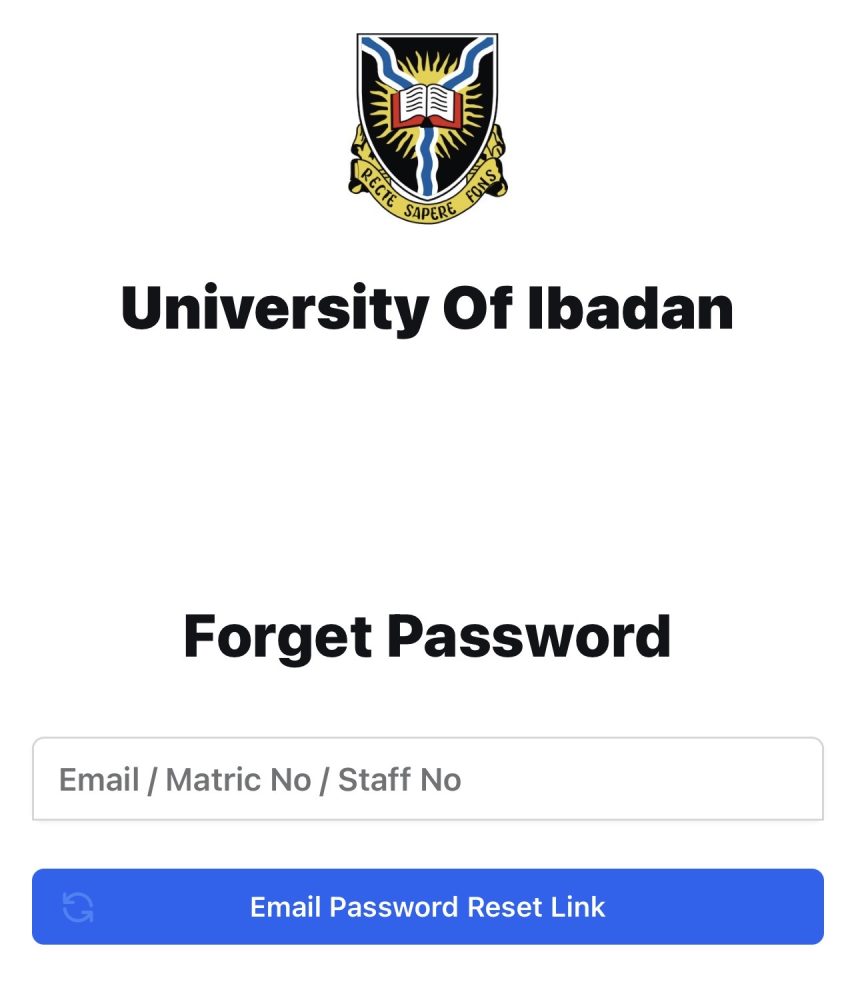
It’s common to forget login credentials, including passwords. Fortunately, the UI portal provides a simple process to recover your password. Here’s what to do:
Step 1: Visit the Login Page
Go to the UI Student Portal login page using this link:
UI Student Portal Login.
Step 2: Click on the “Forgot Password” Link
On the login page, you will see a link that says Forgot Password?. Click on this link to initiate the password recovery process.
Step 3: Provide Your Registration Details
You will be asked to input information like:
- Matriculation Number or Username
- Email Address associated with your portal account
Make sure to provide the correct details associated with your account so that the recovery process can proceed smoothly.
Step 4: Check Your Email for a Reset Link
Once you provide the necessary details, the portal will send a password reset link or security code to your registered email. Open your email inbox and check for the message from the UI portal.
Step 5: Reset Your Password
Click the password reset link in your email or enter the reset code on the portal’s reset page. You will then be prompted to create a new password. Choose a strong, secure password that you can easily remember.
Step 6: Log In with Your New Password
Once your password has been successfully reset, return to the UI student portal login page and sign in using your Matriculation Number/Username and new password.
Common Problems and How to Fix Them
Here are some common issues students may encounter while using the UI student portal, along with troubleshooting tips:
Problem 1: “I Can’t Log in”
- Check your credentials: Double-check that you’re using the correct matric number and password.
- Reset your password: If you’ve forgotten your password, follow the steps above to recover it.
- Clear your browser cache: Sometimes old cache data can cause issues when logging in.
Problem 2: “Admission Status Not Showing”
- Confirm your application details: Ensure your JAMB registration number or application number is correct.
- Admission may be in batches: UI often releases admission lists in batches. Keep checking the portal for updates.
- Check the university’s announcements: The university may release official updates regarding admission status.
Problem 3: “I Forgot My Username”
- Check your email: Your matriculation number or username is typically sent to your email upon registration. Look through your inbox for this detail.
- Contact portal support: If you still can’t find your username, contact the ICT support team at UI for help.
Tips for Safe Usage of the UI Portal
When using the UI Student Portal, it’s important to follow best practices for security and efficiency:
- Change your password regularly: For security purposes, update your password every few months.
- Use strong passwords: Avoid using easily guessable passwords. Combine uppercase, lowercase, numbers, and special characters.
- Don’t share your login credentials: Keep your password and username confidential to avoid unauthorized access.
- Logout after use: Always log out from the portal after accessing your account, especially when using shared devices.
How to Contact Support if You Have Issues
If you encounter any problems or issues with the portal:
- Visit the ICT support office: The University of Ibadan has an ICT support office that handles portal issues.
- Send an email to the support team: You can contact the UI ICT support via email or reach out through the official phone numbers provided on the portal.
- Check FAQs on the portal: The official portal might have frequently asked questions (FAQs) that provide instant solutions to common problems.
Conclusion
The UI Student Portal is a vital tool for accessing your academic records, checking your admission status, and staying updated on university activities. Understanding how to login, how to check your admission status, and what to do if you forget your password will make navigating university life much easier.
Remember to regularly check your admission status, keep your credentials secure, and follow the correct procedure for recovering your password if needed. Always rely on official sources and the UI student portal for the most accurate and up‑to‑date information.
If you have further questions or face any issues, don’t hesitate to contact the ICT support team at the university.