
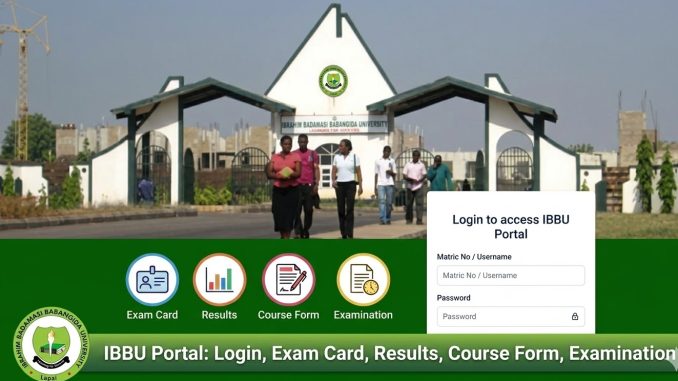
The Ibrahim Badamasi Babangida University (IBBU) is one of Nigeria’s premier universities, offering a wide range of undergraduate and postgraduate programs. The IBBU portal is the official online platform for students to manage their academic affairs, including course registration, exam card access, result checking, and more. The portal simplifies various administrative tasks for students and faculty, making academic activities more efficient.
In this article, we’ll provide a comprehensive guide on how to login to the IBBU portal, access your exam card, check results, fill out the course form, and understand the examination procedures.
What is the IBBU Portal?

The IBBU portal is an online system designed to streamline academic processes at Ibrahim Badamasi Babangida University, Niger State, Nigeria. The portal serves both students and staff, providing access to academic resources, registration forms, results, and other essential services.
Some of the key functions available on the IBBU portal include:
- Student registration and login
- Course registration for each semester
- Access to exam cards and timetables
- Results checking
- Exam scheduling and guidelines
How to Login to the IBBU Portal
To access any of the services on the IBBU portal, you must log in using your student credentials. Below is a step-by-step guide on how to log in to the IBBU portal.
Steps to Login:
- Visit the Official Portal:
Open your web browser and go to the official IBBU portal. The portal URL is usually announced by the university on its official website or student communication channels. Click Here to login direcrly. - Enter Your Login Credentials:
Once on the portal’s homepage, you’ll be prompted to enter your student registration number and password. The password is typically set during your initial registration. - Click the “Login” Button:
After entering your credentials, click the Login button. You will be redirected to your personalized dashboard where you can access various academic services.
Troubleshooting Login Issues:
- If you are unable to log in, double-check that your student registration number and password are correct.
- Ensure that you’re entering your password in the correct case (passwords are usually case-sensitive).
- If you’ve forgotten your password, the portal may offer a password recovery option, allowing you to reset it. Click here to recover your password.
How to Access Your Exam Card on the IBBU Portal
The exam card is an essential document that gives students access to exams. It contains your exam details, such as the courses you’re registered for and the date, time, and location of your exams.
Steps to Access the Exam Card:
- Login to the IBBU Portal:
After successfully logging in, navigate to the Examination section of the portal. - Click on “Exam Card”:
In the Examination section, you will find an option to view or download your exam card. - Download the Exam Card:
You can now download your exam card or print it for use during exams. Make sure to check the exam timetable on the portal to confirm your exam schedule.
Issues with Exam Card Access:
- If your exam card is not available on the portal, ensure you have completed the course registration for the semester.
- Some students may experience delays in the availability of exam cards. If this happens, contact the exam office or student affairs for assistance.
How to Check Your Results on the IBBU Portal
The IBBU portal allows students to check their exam results online. This is a convenient way to keep track of academic performance throughout the semester.
Steps to Check Your Results:
- Login to the Portal:
Enter your student login credentials (student ID and password) to access the dashboard. - Navigate to the Results Section:
Once logged in, find the Results section on your dashboard or under the Academic menu. - Select the Relevant Exam:
Choose the semester or exam period for which you want to view results. - Download or View Your Results:
Your exam results will be displayed in a PDF format or as an online record. You can either view them online or download and print your results for future reference.
Common Issues with Checking of Results:
- Results Not Available: Sometimes, results may not be uploaded to the portal immediately after exams. This can be due to delays in grading or processing.
- Missing Courses: If a course result is missing, confirm that you are registered for the course and that the results have been officially submitted by your department.
How to Fill Out the Course Form on the IBBU Portal
The course form is used to register for classes each semester. It is an important part of the academic process as it ensures you are officially enrolled in the courses required for your program.
Steps to Fill Out the Course Form:
- Login to the IBBU Portal:
Use your student credentials to access the portal. - Navigate to the Course Registration Section:
Look for the Course Registration or Course Form section. - Select the Courses You Want to Register For:
The available courses for your department and semester will be listed. Choose the courses you want to enroll in and ensure that you are meeting your program’s requirements. - Confirm Your Registration:
Once you’ve selected all your courses, review your choices and confirm. Make sure you haven’t exceeded the credit load limit for the semester. - Submit Your Course Registration:
After reviewing and confirming your selected courses, submit the course form. You will receive a confirmation slip or notification of successful registration.
Common Issues with Course Registration:
- Inability to Register: This can happen if you haven’t paid your school fees, completed your clearance, or if there are system errors on the portal.
- Course Not Available: If a course is not available, check with your department to ensure it’s being offered in that semester.
Examination Information and Guidelines
The IBBU portal provides crucial information regarding exams, including exam schedules, procedures, and venues. All registered students should regularly check the portal for updates on the examination process.
How to Access Examination Guidelines:
- Login to the Portal:
Use your credentials to log in. - Go to the Examination Section:
Check for important updates related to exam schedules, venue details, and general exam guidelines. - Review Exam Timetable:
Download or view the exam timetable for your semester to see when and where your exams will be held. - Follow Exam Instructions:
Make sure you review all instructions provided on the portal to avoid any issues on exam day.
Common Exam Issues:
- Exams Not Listed: If your exams are not showing, ensure your registration for those courses is finalized.
- Wrong Exam Time/Date: If you believe there’s an error in your exam schedule, contact the exam office for verification.
Conclusion
The IBBU portal is an essential platform that facilitates easy access to important academic services such as exam card downloads, results checking, and course registration. It simplifies the management of academic tasks for students, enabling them to stay organized and focused on their studies.
By following the steps provided in this article, students can efficiently navigate the portal, check their results, fill out their course forms, and access examination details without stress. If you encounter any issues while using the portal, don’t hesitate to contact the university’s help desk for support.
1 Trackback / Pingback